
 Post · InfrastructureNov 27, 2026 · 3 min read
How to get AI alerts for the WordPress plugins you actually use
Give your AI tool a list of the WordPress software you have installed. Ask it to check published security advisories on a schedule and tell you when your version is affected. A link to your homepage alone can’t give it that inventory.

Start with the list WordPress already has
In your dashboard, open Tools → Site Health → Info. Note your WordPress version and the names and versions of installed plugins and themes, including inactive ones. Add the directory slug or vendor where two products have similar names. For paid extensions, include the vendor’s release-notes link if you have it. WordPress’s guide to Site Health shows where each field lives.
Copy just those fields into your favourite AI tool. Leave the full Site Health export, server paths and account details out. The assistant can compare publicly disclosed versions without a WordPress login. Date your list and refresh it when something is installed, updated or removed.

Give it a job it can finish while you’re away
Choose a tool that can look up current sources, run in the background and deliver a notification. In ChatGPT, for example, create a recurring task and enable email or push notifications. Check that the task shows a next run and send yourself a test notification. If your assistant works only when you open it, use advisory emails for delivery and bring individual notices to the assistant for a second read. ChatGPT’s task and notification settings.
Paste your list underneath this prompt. Pick a time when the person who maintains the site will see the message.
Every weekday at 9 am Toronto time, compare the inventory below with vendor advisories and the Wordfence or Patchstack database. On the first run, check outstanding issues too. Notify me when an installed version is in an affected range or when a matching advisory gains a fix. Include the component, my version, the affected range, the first fixed version if one is published, and a dated source link. Skip repeats. If you can’t read a source or identify a product, flag the gap separately.
Start with the developer’s security notice. The Wordfence vulnerability database and Patchstack’s database are useful cross-checks. Open the advisory before acting. A newer release alone tells you very little about which earlier versions were affected.

Two booking sites, one alert
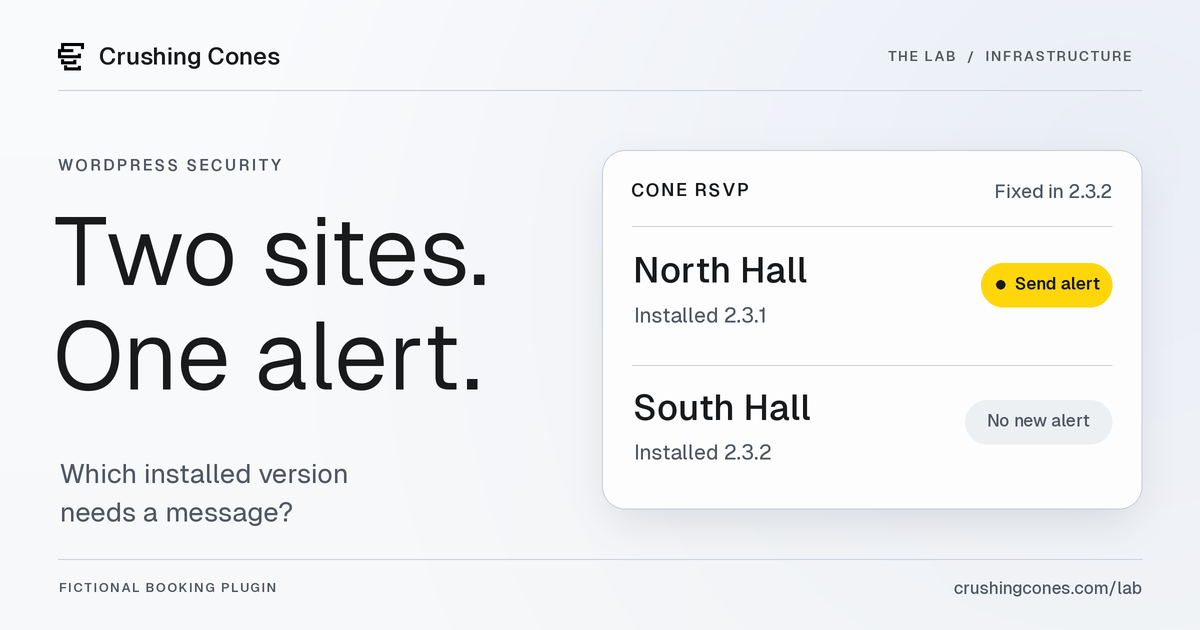
For this Lab exercise we made up a booking plugin, Cone RSVP, and a notice that applies to versions 2.3.0 through 2.3.1. The fictional developer lists 2.3.2 as the first fixed release. Both sites use the same plugin. Only one owner needs a message.
- North Hall runs 2.3.1. Send the owner the matching notice and the fixed version. Their booking form is the first thing to test after updating.
- South Hall runs 2.3.2. Suppress this notice. An alert based on the plugin name alone would interrupt both owners.
Try both rows before you rely on the task. Then remove North Hall’s version and run it again. The useful answer is a request for the missing version. A clean bill of health would be a guess. In a real watch, a quiet day means only that the sources checked produced no new match. It tells you nothing about whether someone has already accessed the site.

Decide who gets the second job
On the Crushing Cones site, our contact form waits for the mail provider to accept an inquiry before it shows the success message. We’d use the same standard for North Hall. After checking the advisory and the recovery copy, the person applying the patch would reserve one seat on staging. Does the booking appear in the calendar, and does the guest receive exactly one confirmation? Once the patch goes live, repeat that check and refresh the inventory.
If you’re comparing hosting plans, ask who would run that booking test after a patch. Here’s how we handle managed hosting and ongoing website maintenance.